


In this guide we explain how to install data games on Android in a simple way, covering everything you need to install and run them without problems. Every data game on DroidCove comes with a short three-step instruction. Steps one and three are easy and need no special explanation (Step 1 installs the APK, Step 3 runs the game), so here we focus mainly on the data step, with short, clear sections so you never get lost.
Installing an Android game (the APK)
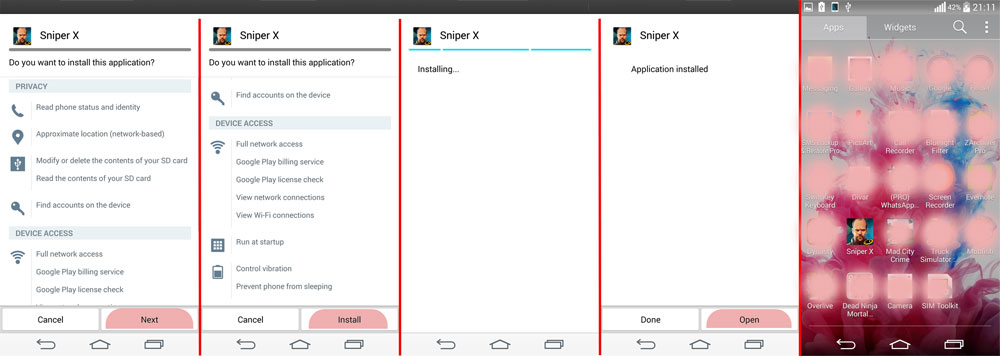
As you know, every Android game install file is an APK and installs with a single tap. Just tap it, the permissions and privacy screen appears, then press Next and Install to install the game. The image below shows this in five steps.
Extracting the data file (unzip)
Game data is provided as a compressed file (it cannot be offered uncompressed). On DroidCove the data uses the common ZIP format, and you can extract it with any Android or Windows file manager.
Use a file manager such as ZArchiver
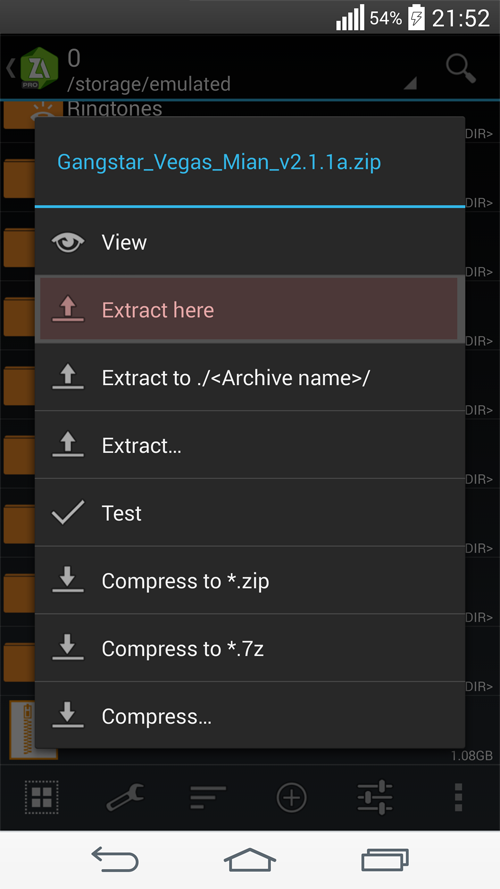
To extract the data you need a file manager on your device. We recommend ZArchiver, which is used in the tutorial image below. Tap the compressed file, the file-manager menu appears, and choosing Extract here unpacks it right where you are.
Placing the data folder in the correct path
Installing and running data games is not difficult; learn it once and it becomes second nature. The data folder path is either Android/obb or Android/data, and each game’s post tells you which one. After extracting, copy the folder into your device’s internal storage.
Example (Gangstar Vegas):
- Step 1: download and install the APK.
- Step 2: download the data, extract it, and copy the folder com.gameloft.android.ANMP.GloftGGHM into Android/obb.
- Step 3: run the game.
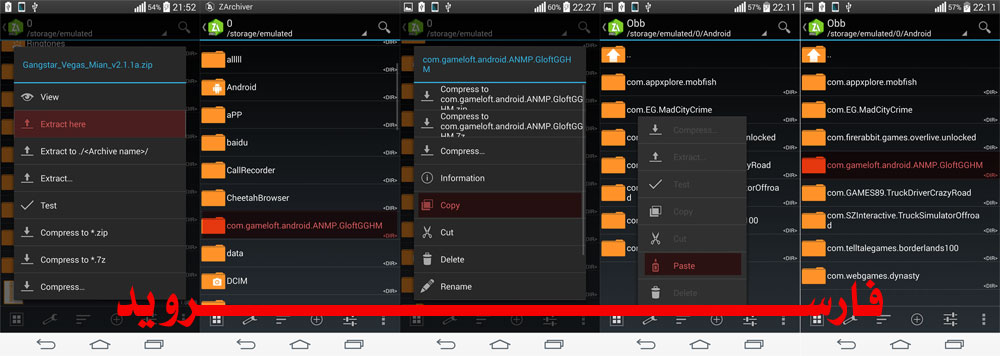
In ZArchiver, Emulated/0 is your device’s internal storage. If a game’s instructions say the data goes to Android/data, copy it into the data folder instead of obb, the same way.
Cannot access the obb folder on Android 11, 12 and 13?
Because of restrictions in Android 11, 12 and 13, you cannot reach the Android/obb folder directly. To fix this, install the ZArchiver file manager. With it, access opens up and you can copy and paste into the Android and obb folders.
Extra tips for data games
- Game data must be copied to internal storage by default. If you copy it to an SD card it will not be detected.
- If the Android folder exists but there is no obb folder, simply create a new folder named obb.
- After installing the APK in Step 1, do not open the game yet. Run it only after every step is done.